Upgrading from Windows 10 to Windows 11 is usually straightforward, but a little prep beforehand avoids most of the common headaches. Here's what to check first.
1. Confirm the computer supports Windows 11
Windows 11 has stricter hardware requirements than Windows 10, including a newer processor and a security feature called TPM 2.0. Windows will tell you if your PC is eligible under Settings > Windows Update, or you can run Microsoft's PC Health Check tool to confirm.
2. Back up your files first
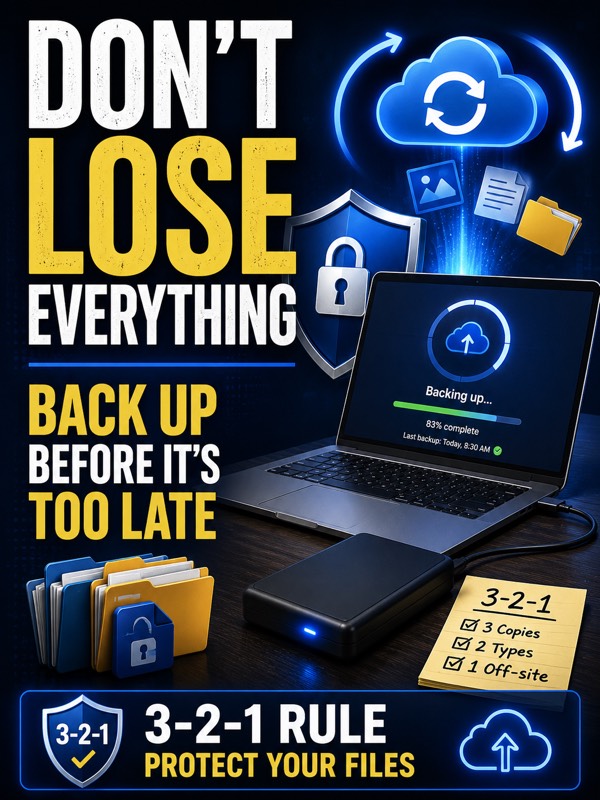
Before any major upgrade, make sure important documents, photos, and files are backed up, either to an external drive or a cloud service like OneDrive or Google Drive. Upgrades are usually safe, but backups exist for the rare cases when something goes wrong.
3. Write down your passwords and logins
Confirm you know your Microsoft account password and any logins for email, Wi-Fi, and key apps and printers. If a password manager is involved, make sure you can still access it after the upgrade.
4. Check that your printer and key software still work
Most modern printers and software work fine on Windows 11, but older printers or niche software occasionally need updated drivers or aren't supported at all. A quick search for "[your printer model] Windows 11" ahead of time can save a surprise later.
5. Make sure the laptop is plugged in and has time
The upgrade can take anywhere from 30 minutes to a couple of hours depending on the computer. Plug in the charger and avoid starting it right before you need the computer for something else.
After the upgrade
- Run Windows Update again to catch any additional updates.
- Confirm your Wi-Fi, printer, and key apps still work as expected.
- Take a few minutes to get familiar with the new Start menu and taskbar layout, since it's changed noticeably from Windows 10.
If you're not sure whether your computer qualifies, or would rather have the backup, upgrade, and settings check handled for you, that's a common setup request and usually a quick visit.